Introduction
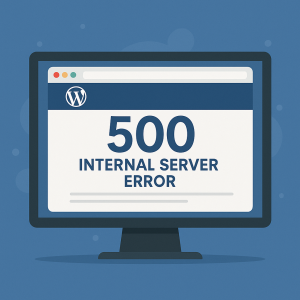
A 500 Internal Server Error on your WordPress site can be intimidating. It doesn’t give much detail, and to visitors, it looks like your entire website is broken. But don’t worry — this is one of the most common errors in WordPress, and it can usually be fixed quickly with the right steps.
What Is a 500 Internal Server Error?
This error means something has gone wrong on the server, but the server isn’t sure what. It’s a generic error that often points to a problem with your site’s configuration, plugins, themes, or server resources.
Common Causes of WordPress 500 Errors
- Corrupted
.htaccessfile - PHP memory limit exhausted
- Faulty plugin or theme
- Server misconfiguration
- Permission errors on files or folders
- Broken WordPress core files
How to Fix the 500 Internal Server Error in WordPress
1. Backup Your Site First
Before making any changes, use a backup plugin or your hosting panel to create a full backup.
2. Check for a Corrupted .htaccess File
- Use FTP or File Manager to access your root directory
- Rename the
.htaccessfile to.htaccess_old - Go to Settings → Permalinks in your WordPress dashboard and click Save Changes
This will regenerate the file automatically.
3. Increase the PHP Memory Limit
- Create or edit the
wp-config.phpfile - Add the following line before the final
?>:
define(‘WP_MEMORY_LIMIT’, ‘256M’);
- You can also increase the memory limit in your php.ini or .htaccess if allowed by your host
4. Deactivate All Plugins
- Via FTP, go to
/wp-content/and rename thepluginsfolder toplugins-old - If the site loads, a plugin was the cause. Rename the folder back and reactivate plugins one by one
5. Switch to a Default Theme
- Go to Appearance → Themes
- Activate a default theme like Twenty Twenty-Four
- If your site works now, your original theme is likely causing the error
6. Enable Debug Mode
- Edit
wp-config.phpand add the following:
define(‘WP_DEBUG’, true);
define(‘WP_DEBUG_LOG’, true);
define(‘WP_DEBUG_DISPLAY’, false);
- Visit the error page and check
wp-content/debug.logfor specific error messages
7. Check File & Folder Permissions
- Folders should be set to 755, and files to 644
- Incorrect permissions can lead to server errors
8. Re-upload Core WordPress Files
- Download a fresh copy of WordPress from wordpress.org
- Replace the wp-admin and wp-includes folders via FTP
- Do not replace the
wp-contentfolder orwp-config.phpfile