Introduction
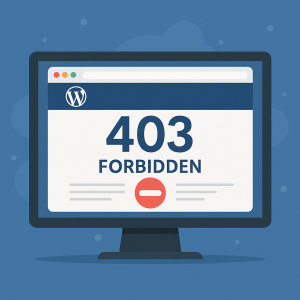
Encountering a 403 Forbidden error on your WordPress website can be alarming — especially if you’re unsure what caused it. This error means that the server understands the request but refuses to authorize it. But don’t panic. In most cases, this issue can be resolved with a few troubleshooting steps.

What Is a 403 Forbidden Error?
The 403 error indicates that access to the requested resource is denied. It typically occurs when your server’s permissions, .htaccess rules, or security plugins block a request.
Common Causes of WordPress 403 Errors
- Corrupted or misconfigured
.htaccessfile - Incorrect file or folder permissions
- Security plugins blocking access
- IP blocking by hosting provider
- Malicious redirection or malware infection
- Hotlink protection settings
Step-by-Step Fixes for 403 Errors
1. Backup Your Site First
Before making any changes, create a full backup of your site using a plugin like UpdraftPlus or via your hosting panel.
2. Deactivate Security Plugins Temporarily
Sometimes, plugins like Wordfence, iThemes Security, or All In One WP Security can mistakenly block access.
- Go to your File Manager or connect via FTP
- Navigate to
/wp-content/plugins/ - Rename the security plugin folder (e.g., from
wordfencetowordfence-temp) - Refresh your site to see if the error is gone
3. Check .htaccess File
A corrupted .htaccess file is a common reason for 403 errors.
- Access your site files via FTP or File Manager
- Locate the
.htaccessfile in the root folder and download a copy for backup - Delete the file
- Go to WordPress Dashboard → Settings → Permalinks → Click Save Changes
This regenerates a fresh.htaccessfile
4. Fix File and Folder Permissions
WordPress requires specific permissions:
- Folders: 755
- Files: 644
Incorrect settings may trigger 403 errors. Use your FTP client or hosting File Manager to change permissions.
5. Check Hotlink Protection Settings
If enabled incorrectly, hotlink protection can block legitimate requests.
- Check your hosting panel (often in cPanel under Security → Hotlink Protection)
- Make sure your domain and image paths are whitelisted
6. Scan for Malware or Suspicious Code
403 errors can be caused by malicious scripts or rules injected into plugins, themes, or .htaccess.
- Use a plugin like Wordfence or MalCare to scan your site
- Clean any suspicious files or entries
7. Contact Your Hosting Provider
If none of the above steps work:
- Your host may have blocked certain IPs or requests for security reasons
- Ask them to check server logs or firewall rules
Final Thoughts
403 errors are frustrating but usually fixable with a systematic approach. Don’t jump into drastic actions like reinstalling WordPress — go through the steps above first.
Need Expert Help With 403 Errors or WordPress Security?
I offer WordPress troubleshooting and malware removal services.
Let’s get started and get your site back online safely!